HRIS Portal
HRIS Portal

Election Worker Management

Help Center

Find answers to common questions and get the support you need

Search here to find answers in our FAQs

Frequently Asked Questions

We highly recommend choosing direct deposit. It's the most secure option, as paychecks can be lost in transit.

If you can't use direct deposit, please follow these steps:
  • Continue your onboarding as usual.
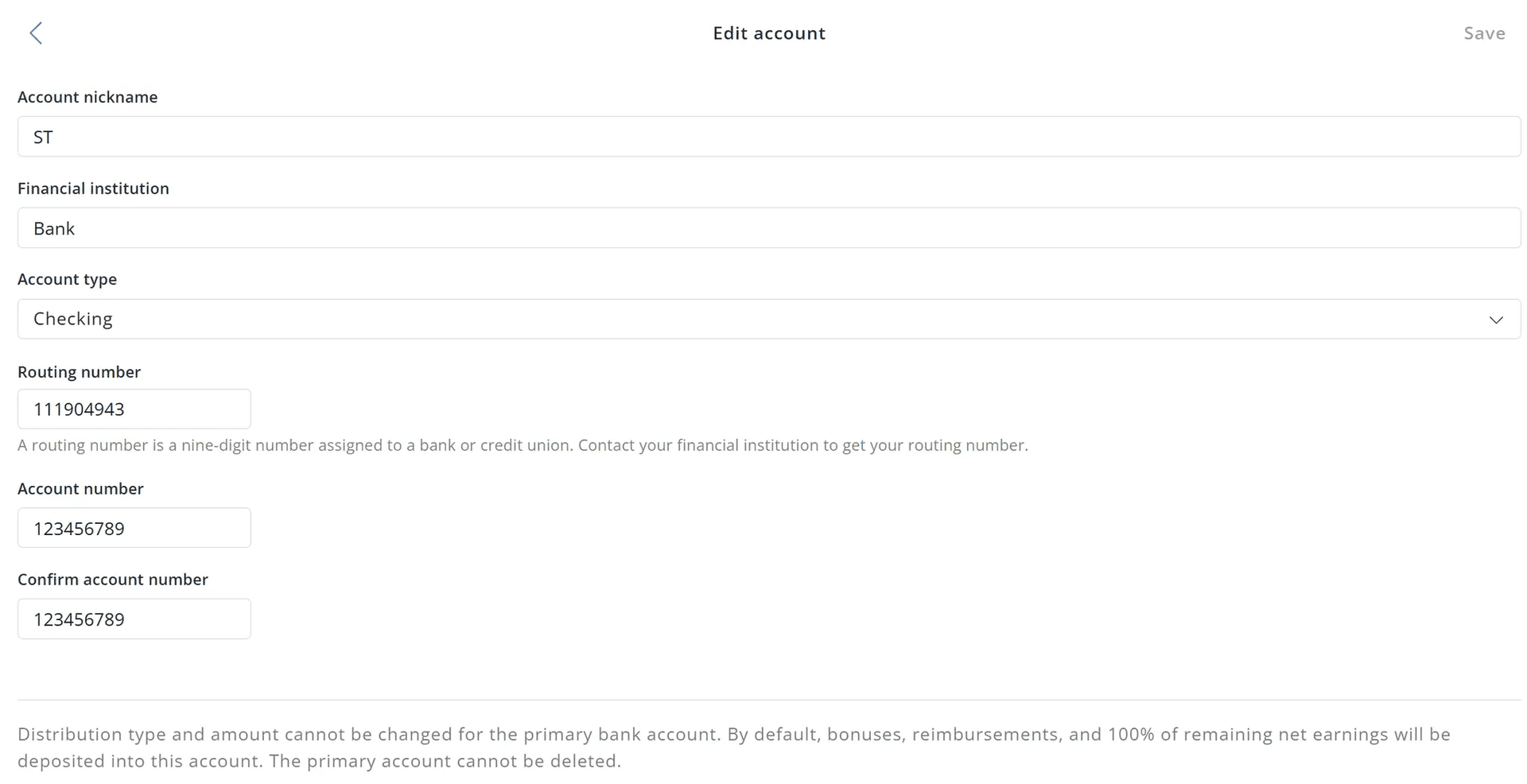
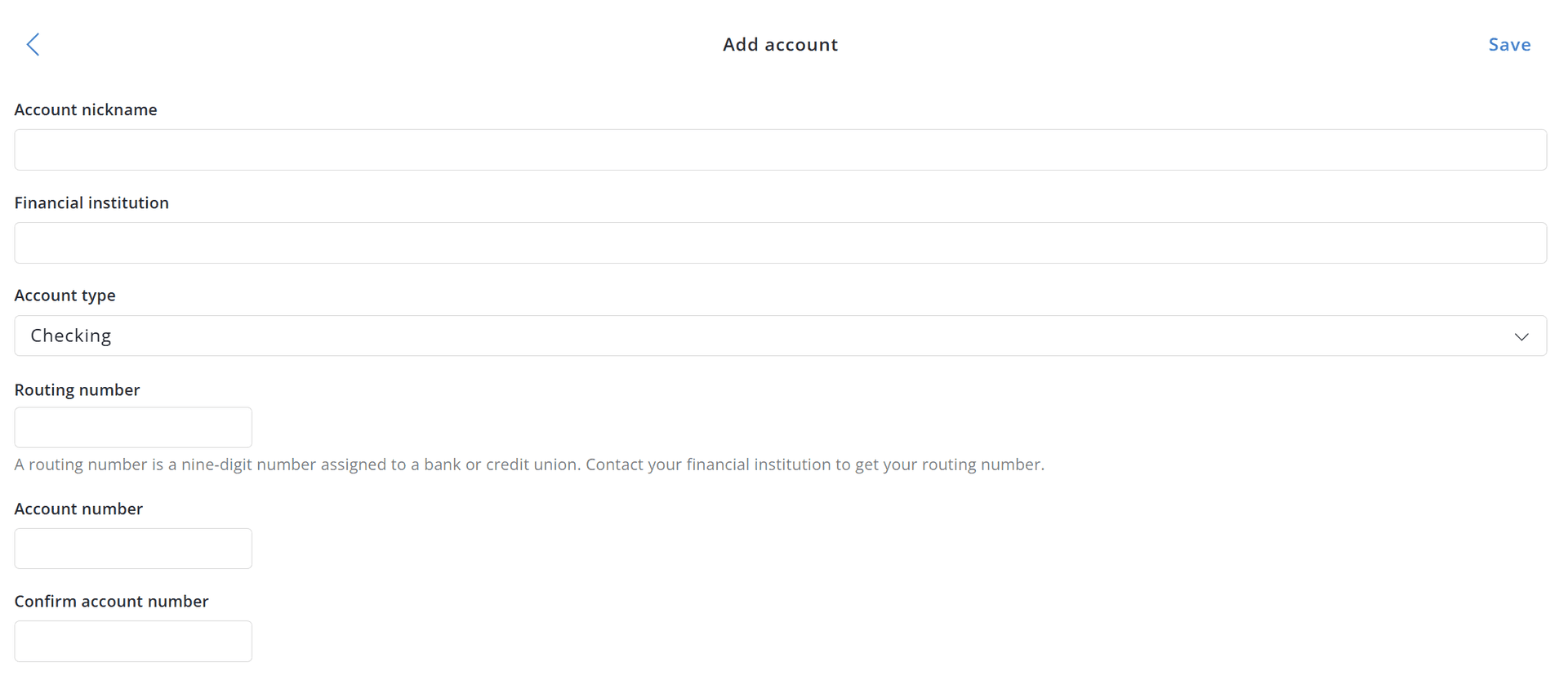
  • When you reach the direct deposit page, you'll see the following fields:
Direct deposit form fields showing placeholder values for paycheck delivery
  • Account Nickname: Paycheck
  • Financial Institution: NA
  • Keep the Account Type as is
  • Routing Number: 111000012
  • Account Number: 0000000000
  • Confirm Account Number: 0000000000

We'll deliver paychecks to the address you provided during onboarding according to your pay schedule.

Your first step should be to download your pay stub:

Most payment issues are related to taxes. Your pay stub shows Federal and FICA taxes. If you earned over $2,500, FICA applies.
Election workers are exempt from FICA taxes up to $2,500 in 2026.

If the amount is still incorrect, please contact Harris County.

The following taxes may apply to your payments:

  • State Taxes: Texas has no state income tax except Texarkana. If you opt out, you must file yourself.
  • Federal Taxes: Based on income bracket. Opting out requires filing yourself.
  • FICA Taxes: Exempt up to $2,500 in 2026. Once exceeded, taxes apply to the full amount.
  • Social Security: 6.2%
  • Medicare: 1.45%
  • Total: 7.65%

If no pay stub exists, contact Harris County to confirm hours.

You can also raise a request via Raise a Request → Raise an Issue.
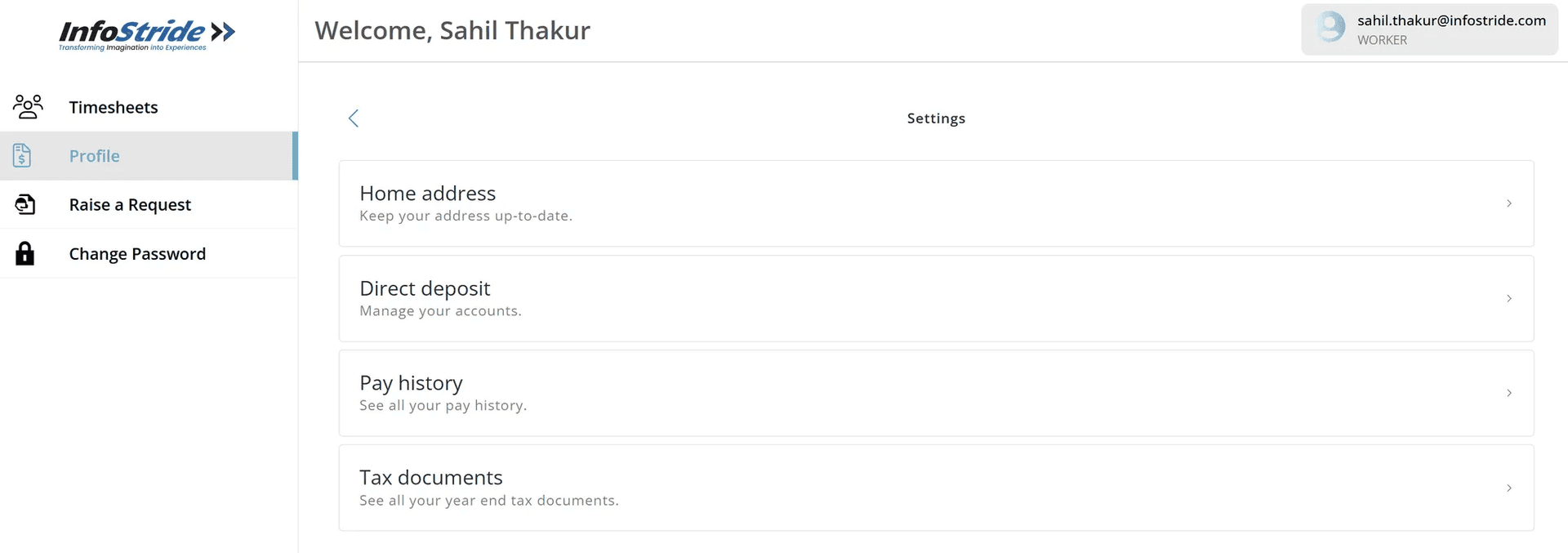
  • Log into your account
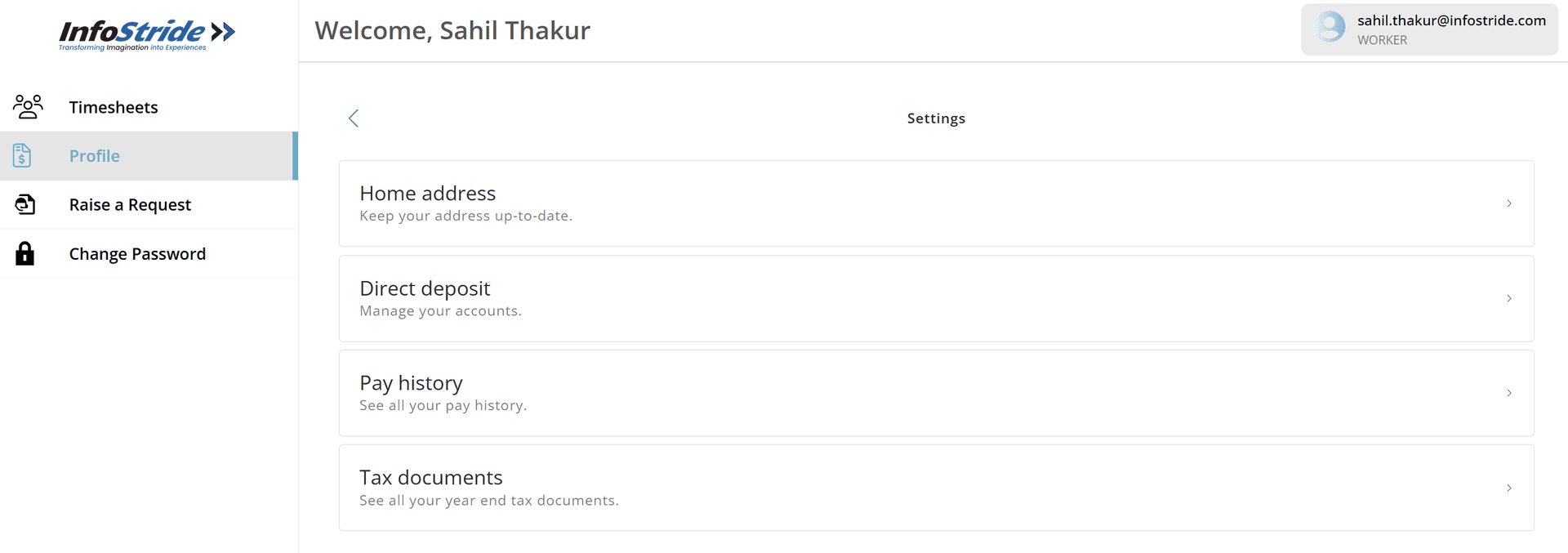
  • Click Profile
  • Select Direct Deposit
Direct deposit settings screenAdding or editing direct deposit accountDirect deposit account list viewConfirmation of updated direct deposit

You can update existing accounts or add a new one and distribute funds.

  • Log into your account
  • Click Pay History
  • Select the pay period
  • View the pay stub

Your onboarding progress will not be affected.

Chrome / Chromium:

  • Ctrl / Cmd + Shift + Del
  • Select cookies & history
  • Time range: All time

Firefox:

  • Ctrl / Cmd + Shift + Del
  • Select cached files
  • Time range: Everything

Still stuck? Email onboarding@infostride.com or call 1-832-662-1700.

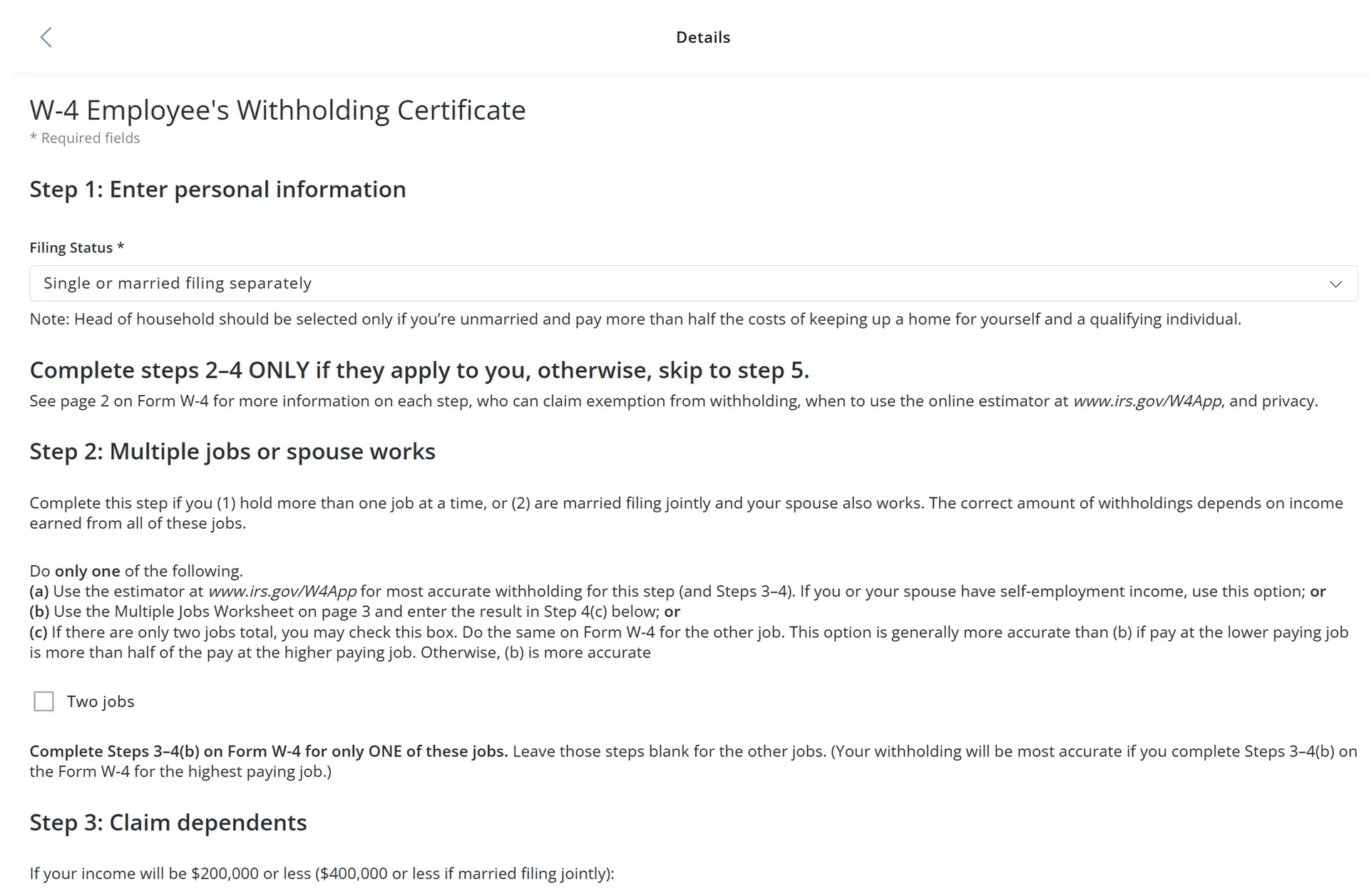
You can change your tax exemptions. Here's how:

For State Taxes:

Profile menu highlighting Tax Forms option

You'll see two forms you can update: State Tax Forms and W-4 (Federal) Tax Forms.

Tax Forms section with State and Federal options

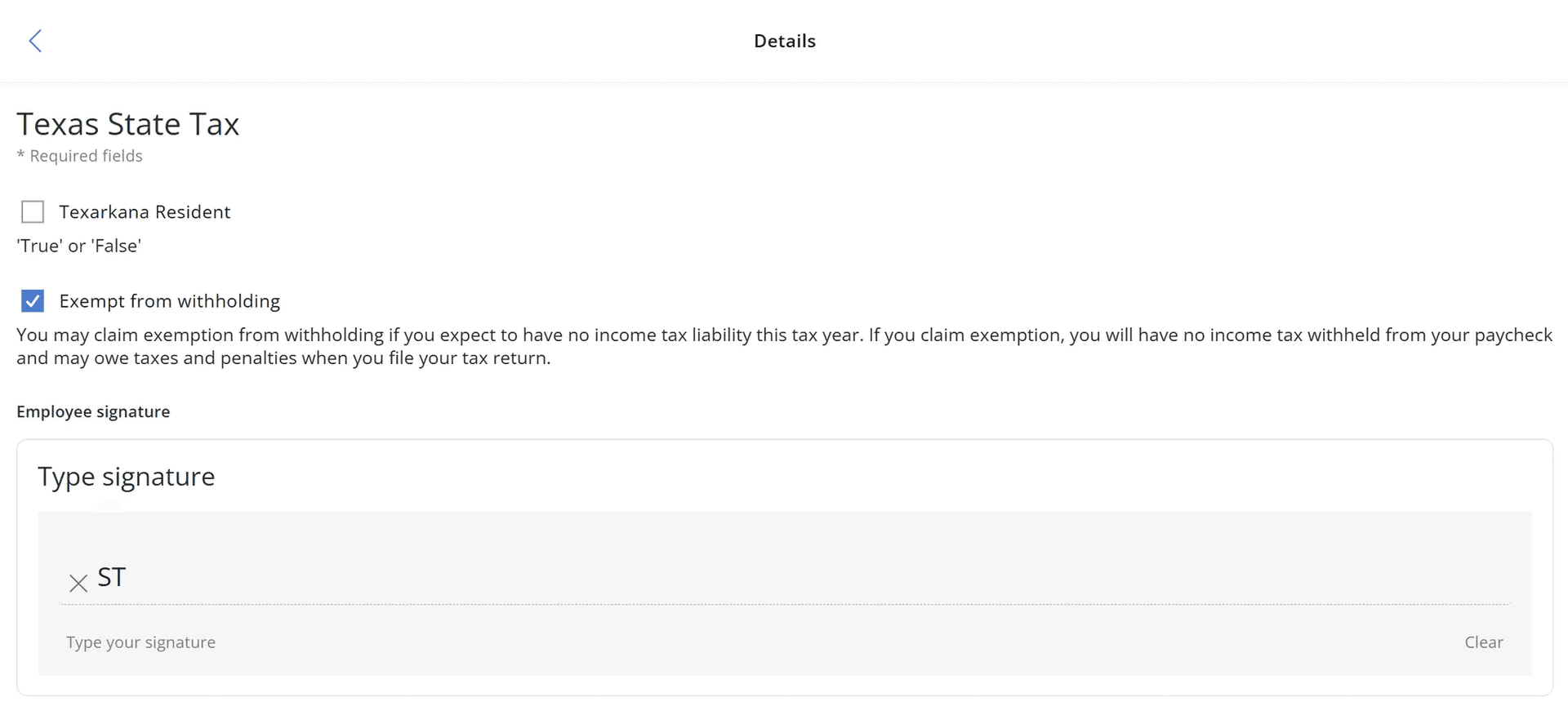
To update State Tax exemptions:

  • Click the pencil icon next to your state tax entry (for example, Texas State Tax).
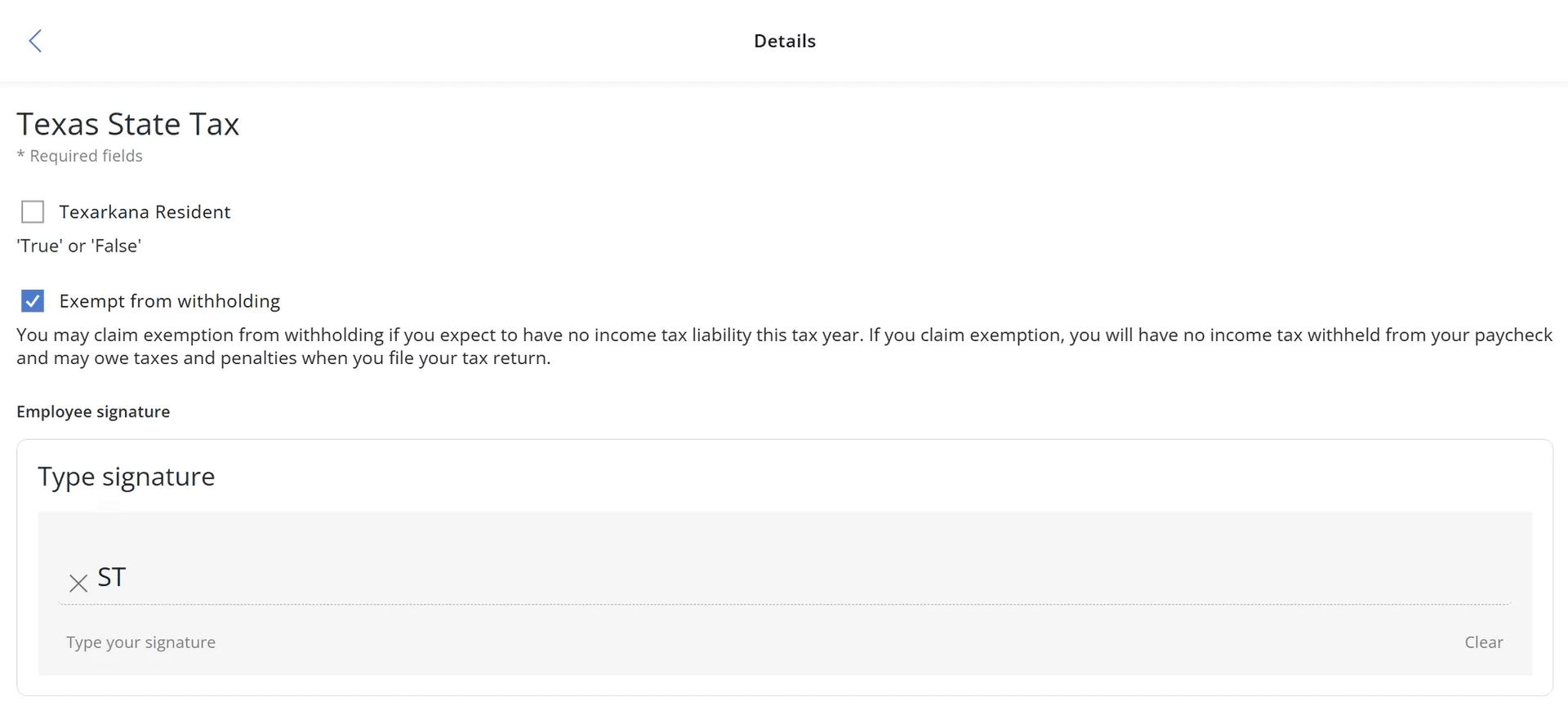
  • You'll see the option "Exempt from withholding".
State tax withholding exemption option

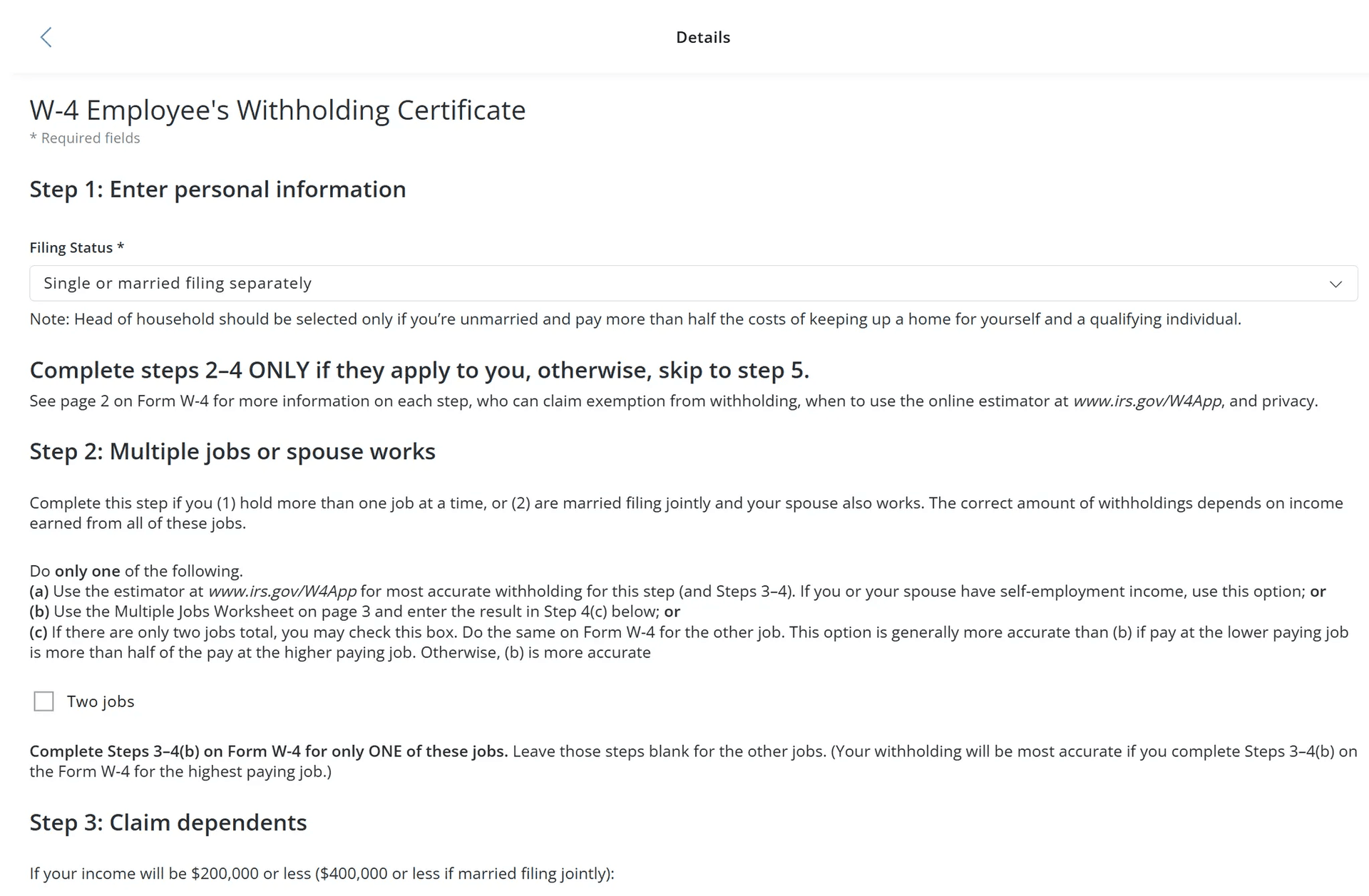
To update Federal (W-4) exemptions:

  • Click the pencil icon next to the W-4 entry.
Federal W-4 tax form editing screen

Try reinstalling the app. If it still fails, use the browser at
https://employee.infostride.com/.

Raise a request via Raise a Request → Raise an Issue.
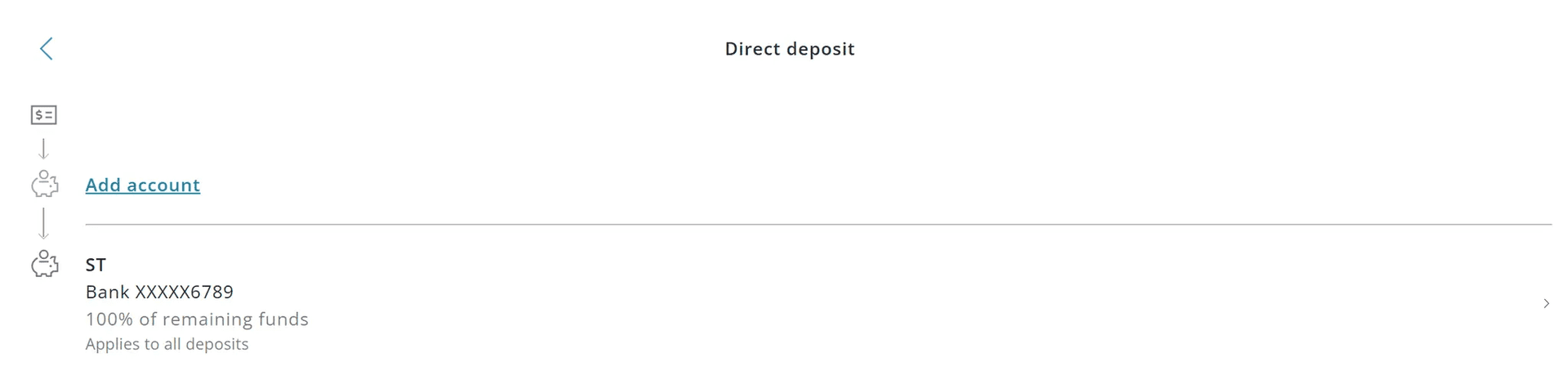
If you can't log in, email onboarding@infostride.com.

Contact onboarding@infostride.com or call 1-832-662-1700 immediately.

Please follow these steps to change your address:
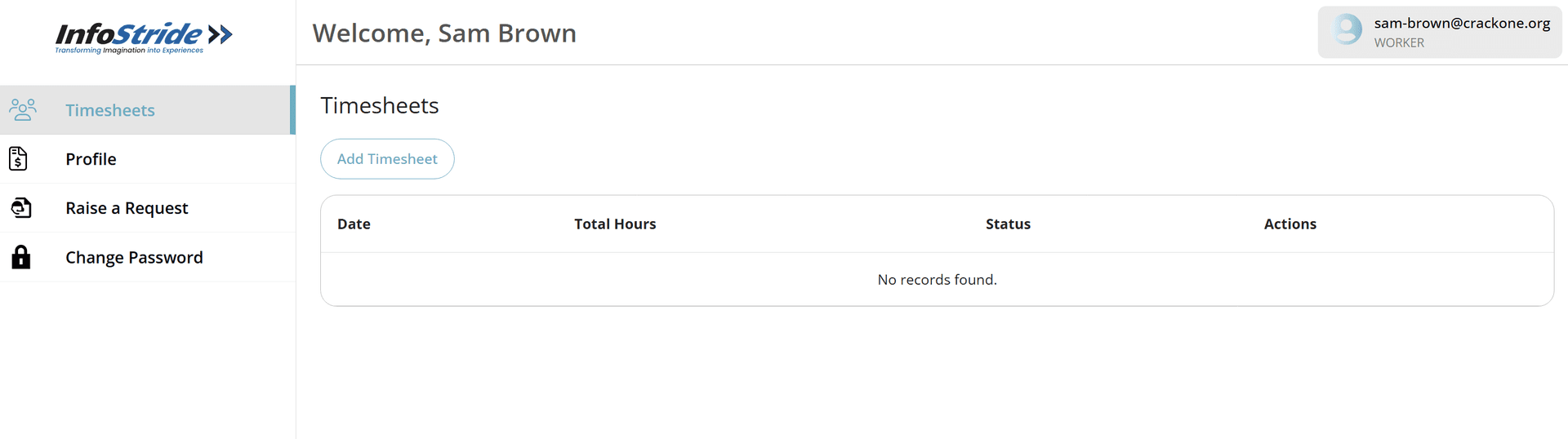
  1. Log into your account at https://employee.infostride.com/. You'll see a screen similar to the one below.
  2. Employee dashboard after login
  3. Click on Profile. You'll see four options.
  4. Profile section with four options
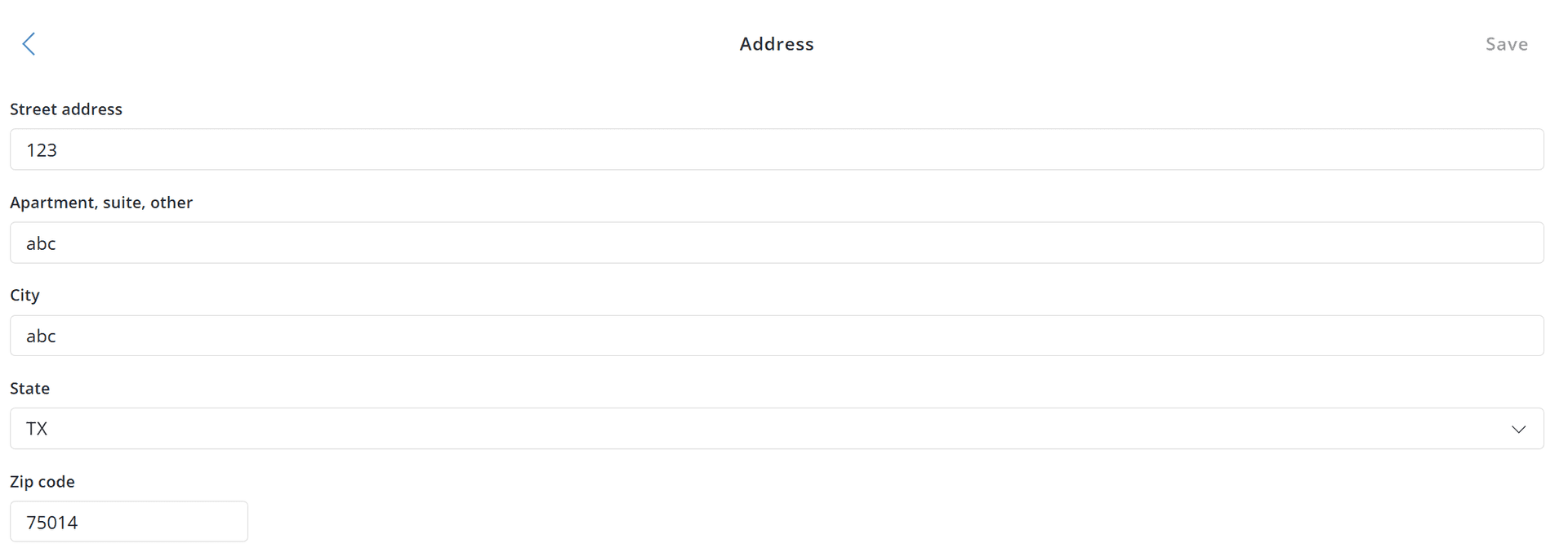
  5. To update your home address, click on Home Address. You'll see the address you provided during onboarding.
  6. Current home address display
  7. Click on the address to view editable fields. Update any information you'd like.
  8. Editable home address form
The Save button will remain gray until you make a change. Once you update any information, it will turn blue.

After making your changes, click Save.

For Early Voting-Payments are processed every Friday. If you worked this week, you'll be paid by next Friday. For Election Day-It takes 3-4 weeks to process and receive pay for Election Day. Pay date is on Fridays.

Most Searched questions this Week

When will I recieve my payment?

Payments are processed every Friday. If you worked this week, you’ll be paid by next Friday.

I recieved an alert email for a change I didn't make. What should I do?

Contact onboarding@infostride.com or call 1-832-662-1700 immediately.

Contact Support

Phone Support

Monday – Friday
8:00 AM – 6:00 PM

Email Support

Response within
24 business hours

Live Chat

Monday – Friday
9:00 AM – 5:00 PM

Support Hours & Escalation

Regular Support Hours: Monday through Friday, 8:00 AM - 6:00 PM (EST)

Response Times:

  • Phone calls: Immediate assistance during business hours
  • Live chat: Response within 5 minutes during business hours
  • Email: Response within 24 business hours

Urgent Issues: For time-sensitive matters like missing payments within 2 days of an election, contact our priority support line.